
License
8. LICENSE
When the License button on the Help page is clicked, a pop-up window appears. In this window, the user can find the Activation ID required to request a license.
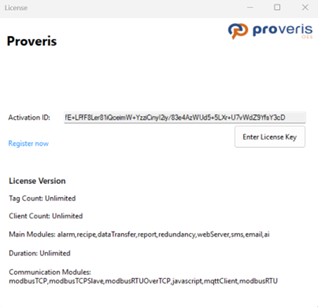
Figure 164 – License Popup
After obtaining your Activation ID, go to greensoft dashboard page and navigate to "Your Orders". As shown in the image below, click the green key icon in the Action section of the licenses with the status “Unlicensed”, then paste your Activation ID to activate your license.
Figure 165 – Your Orders
After activation, you can go to the “My License” section, where you can see the License Key and Download buttons.
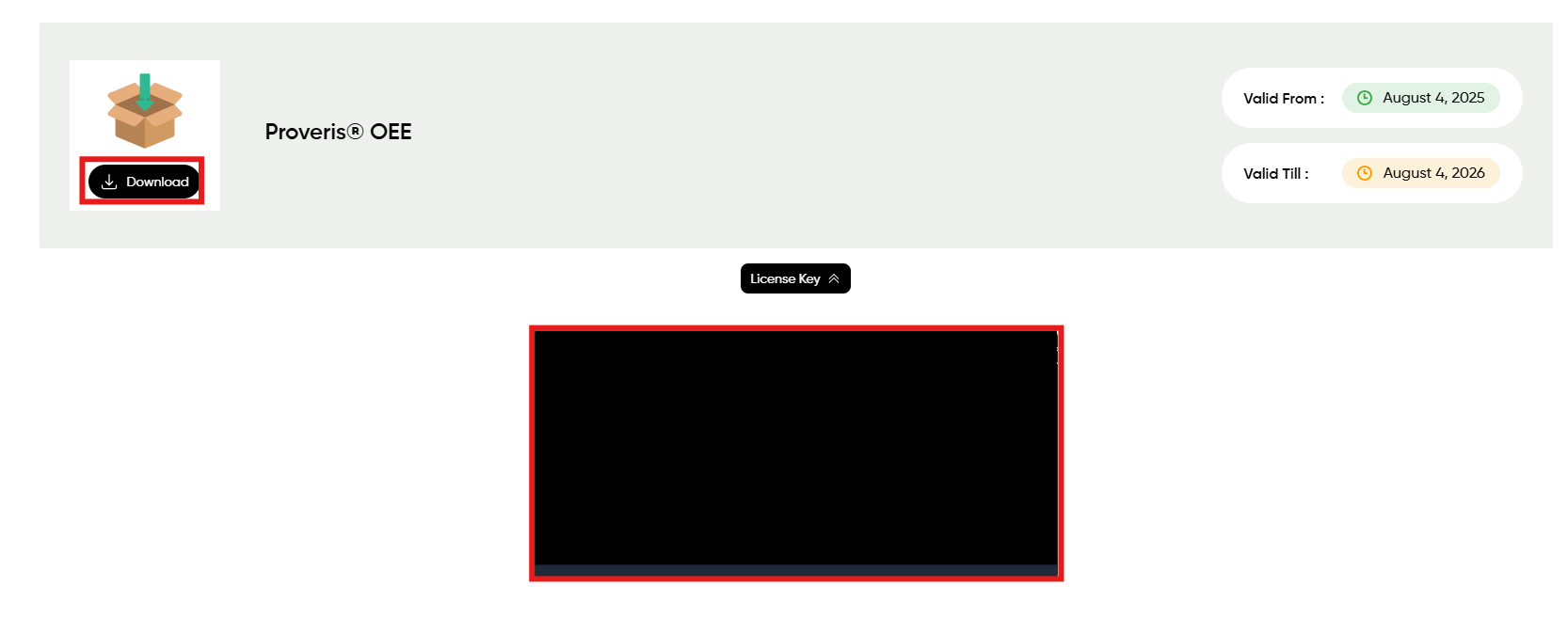
Figure 166 – My Licenses
There are two ways to license the program:
Go to the “My License” section, copy the License Key, then click the “Enter License Key” button on the Help page and paste the key into the corresponding field and clickt to "Activate the License" Button to complete the activation process.

Figure 167 – Activate License
Alternatively, click “Download” to download the license file and place it in the Proveris folder.